

Behaviors are the engine behind the interactive features in Nitro App Builder applications. They let you respond to user actions — button clicks, row selections, field changes, and more — by filtering grids, setting app variables, showing or hiding widgets, calling RPG programs, and chaining additional logic. In larger apps these event-driven rules can grow extensive, which is why the way they’re organized and maintained in the designer matters as much as the actions themselves.
With the latest Valence build 6.4.20261019, the interface for maintaining Behaviors (or Behaviours for those who prefer an extra vowel) has been substantially rebuilt around a two-pane Browse + Flow layout. The goal was to make complex client-side logic easier to scan, edit, and maintain—especially in larger apps—while leaving runtime execution unchanged.
The Orders demo app (see screen shots below) provides a good example for seeing the improvements, as it has a fair amount of interactive behavior: filtering grids, setting app variables, calling RPG programs, showing and hiding widgets, and reacting to row and cell clicks. In the previous designer, that logic lived in a dense tree that became harder to follow as the number of actions grew. The new designer addresses those challenges directly.
What’s changed…
- Two-pane Browse / Flow layout — Browse is grouped by application, event listeners, then section/widget, with labeled trigger kinds (Buttons, Row Click, Icon Columns, and so on); Flow shows the selected trigger’s action chain, so the structure of an event is immediately clearer.
- Improved search — The search field finds triggers across the whole app (names, group titles, widgets, locations), not just the current section; The adjacent search icon opens Search Actions, which finds any action by type, detail, trigger, widget, or section. Clicking a result jumps directly to that trigger’s Flow.
- Descriptive action labels — Action cards show a type plus a detail line. Set App Variables lists the variable names (first three, then “+N more”). Filter shows the widget, Call RPG shows the program, Fire Event shows the event name, and so on—often without needing to open the action.
- New Copy / Move functionality for actions — Select action cards, then Copy (paste banner appears on the next trigger) or Move to (picker). This makes it easier to reuse or reorganize actions across events, instead of having to manually redo them.
- Startup and close programs on Open & Close — Startup and close RPG programs (and URL parameter mappings) used to live in a slide-out on Behaviors. They now have their own Open & Close panel on the editor side rail (alongside Behaviors, App Variables, and Theme), separate from event-driven actions. The after-load Startup trigger itself remains in Behaviors, and Open & Close links to it.
- Fired by chips — Event listeners show “Fired by” chips that indicate what calls them; clicking a chip navigates directly to the caller.
- Call RPG success / failure branches — The Call RPG action card surfaces its success and failure branches directly, so conditional paths are visible without opening the action.
- Feature-name chips — Triggers and actions display feature-name chips for quicker identification.
- Canvas-to-Flow navigation — Clicking a designed button on the canvas jumps directly into that button’s Flow.
These changes don’t alter how Behaviors execute at runtime. Rather, they are a designer rewrite focused on the new Browse and Flow panes, the action cards, and related panels. When you open an app in this build, the Behaviors tree is now much easier to scan, individual actions show more context at a glance, and configurations that used to be buried (including startup/close programs and URL mappings) are no longer mixed in with event-driven actions.
If you’ve been maintaining larger NAB applications, the improvement will be quite noticeable. All the logic is still there, it’s just far easier to work with now.
Below are screenshots of the new Behaviors interface using the Orders demo app…
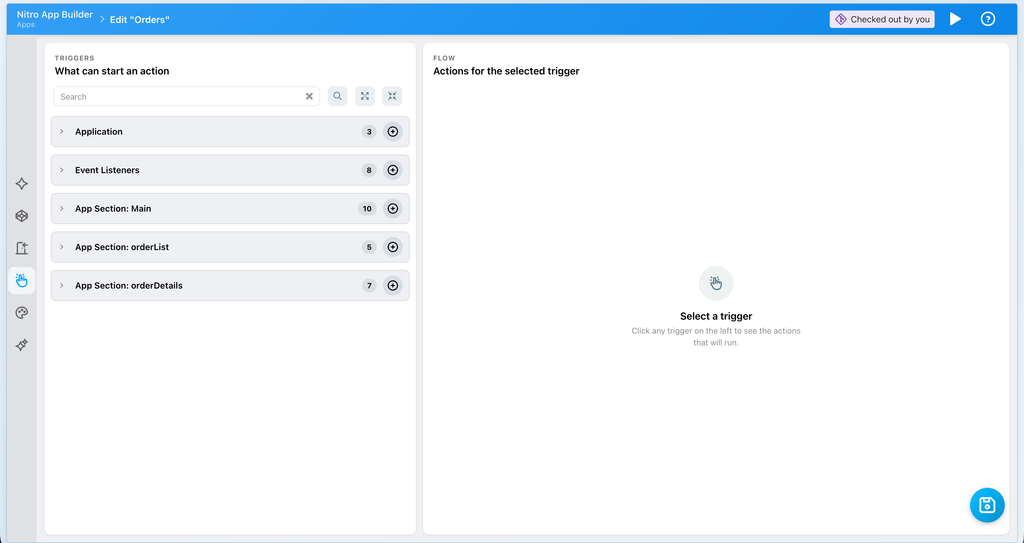
Initial Behaviors list, collapsed
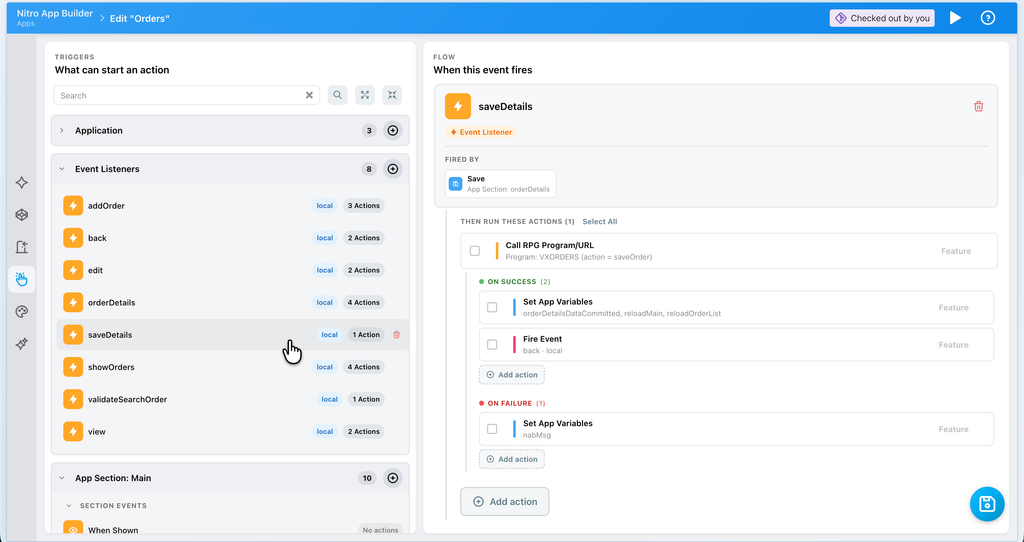
Event Listeners, drilling in on the “saveDetails” event
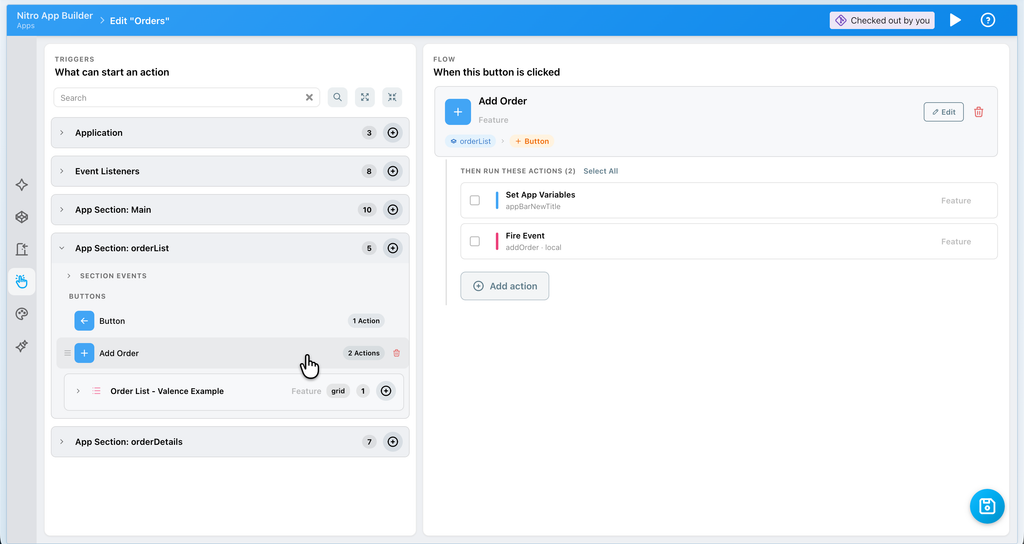
Drilling into the “Add Order” button action
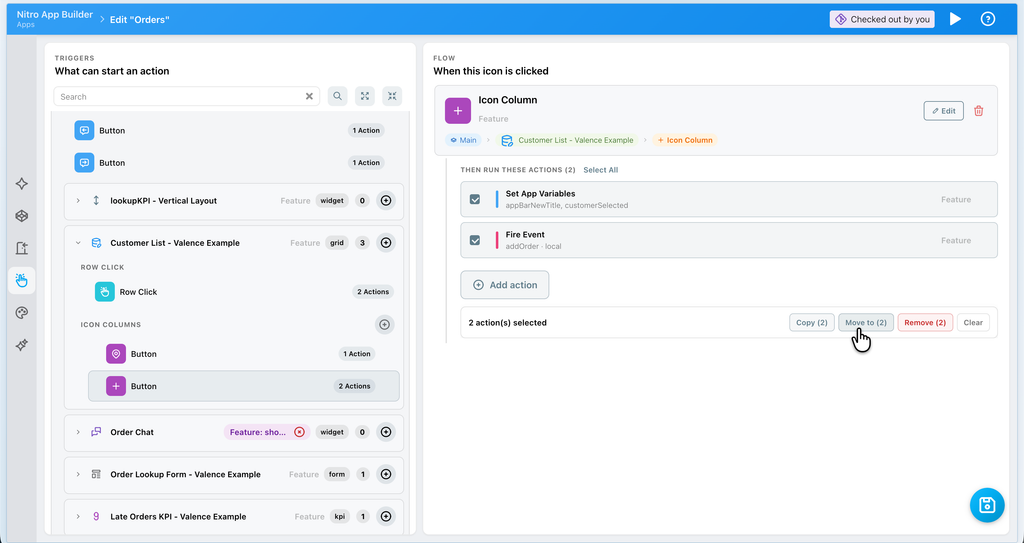
Selecting actions to move to another area
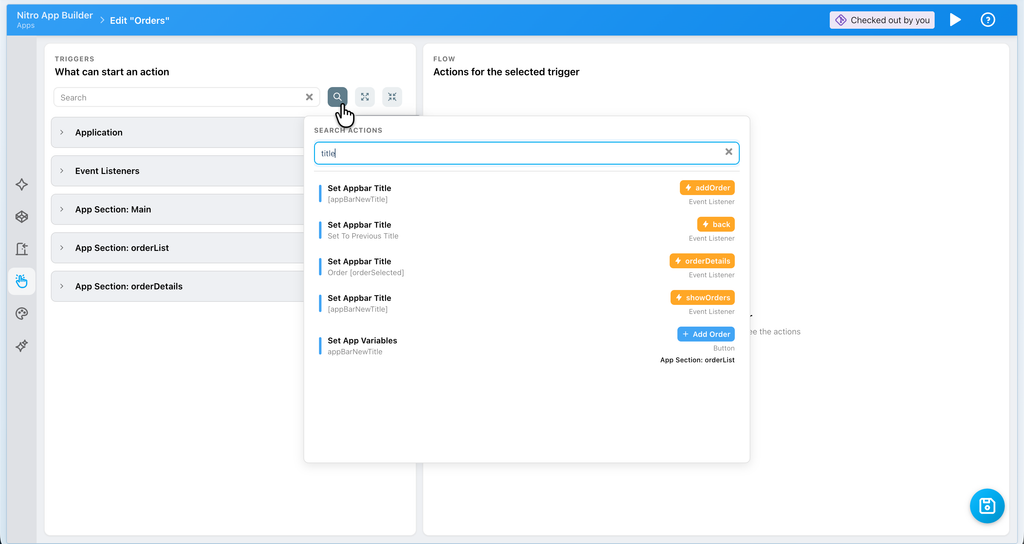
Using the new action search